
Settings
Custom fields and tags
Two ways to record something the standard fields don't cover. They look similar and are used for different jobs.
A custom field is structured: every record of that type has it, it has a type, and you can filter and report on it. Use it for something you'd want in a column — contract renewal date, account tier, seat count.
A tag is a loose label you attach to some records and not others. Use it for the
things that don't deserve a column — priority, inbound, conference-2026.
The test: if you'd ever want to sort or segment by it, make it a field. If you just need to find these records again later, tag them.
Custom fields#
Defined per entity type — Person, Company, Lead, or Deal — under Settings → Custom Fields.
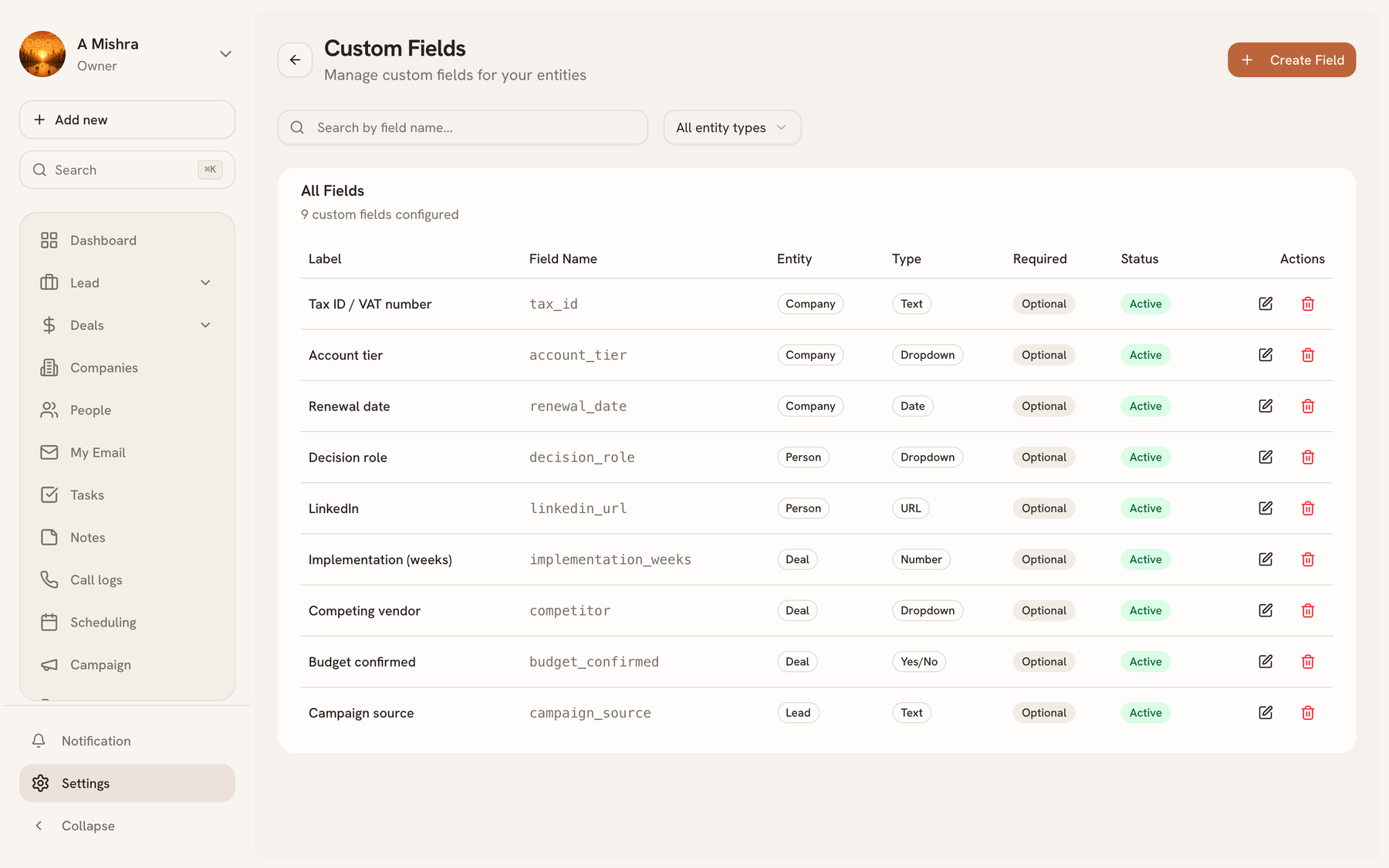
Ten field types are available:
| Type | For |
|---|---|
| Text | Free text |
| Number | Quantities |
| Currency | Money, formatted in your organization's currency |
| Date | Dates |
| Boolean | Yes/no |
| Dropdown | One option from a list you define |
| Multi-select | Several options from that list |
| Email, Phone, URL | Text with the right validation and formatting |
Prefer Dropdown over Text wherever the answer comes from a known set. Free text for a fixed set of values produces "Enterprise", "enterprise" and "ENT" in the same column, and nothing groups properly afterwards.
Custom fields are a plan feature — on a plan without them, the section doesn't appear.
Tags#
Managed under Settings → Tags, and applied from any record or in bulk from a list page. Each tag has a name and a colour.
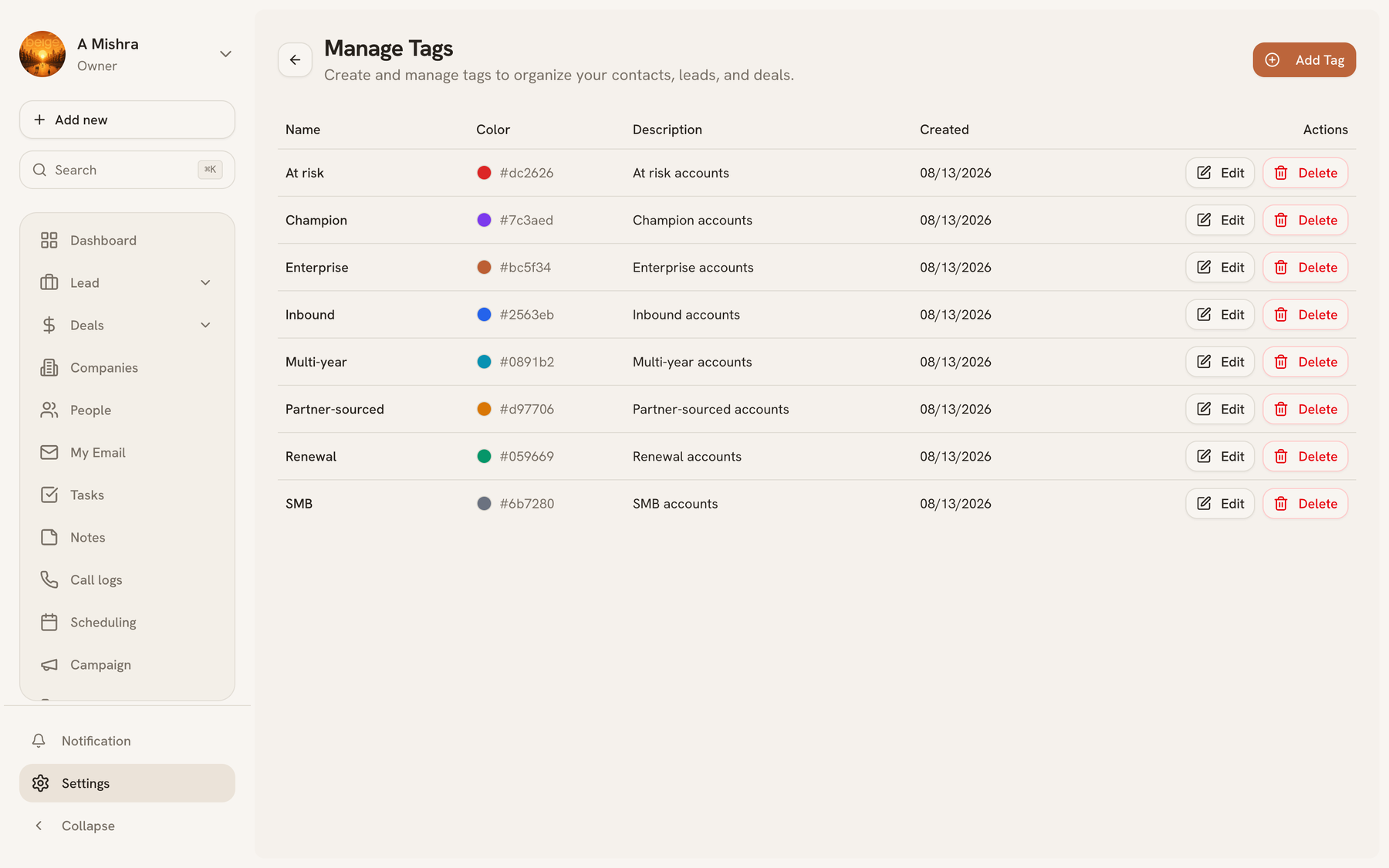
Bulk tagging is on every list — select several leads, people or companies and Assign Tags adds and removes in one pass, so you can retag a segment without clearing it first.
Tags are also what forms and automations apply automatically, which is the main reason to keep the vocabulary small: a tag list that has grown to sixty entries is one nobody filters by.
Last updated 2026-08-14